Recently LEGO®, known for the bricks that work like caltrips for feet, released a new set: the LEGO® Icons Arcade Pinball Machine, aka set 11374
(And that’s enough of typing it uppercase and with the ® symbol)
As a life-long pinball fan and someone who played with Lego blocks in my youth, I had to snap it up. It promised to be a functional pinball machine made from Lego blocks, based on the classic space theme, what’s not to love?
Overview
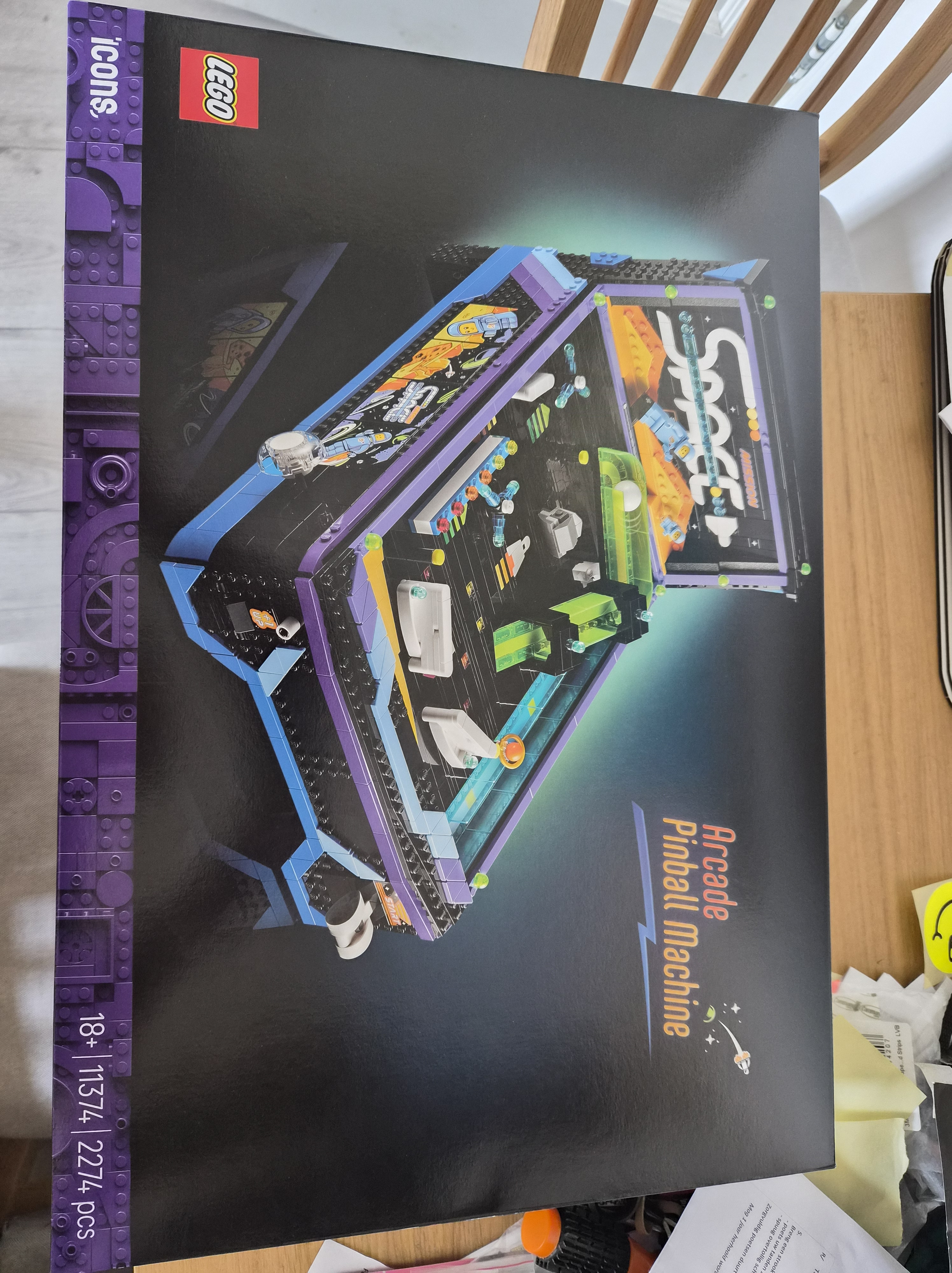
The set comes in a huge box with a preview of the final build on top as well as the daunting 2274 pieces note. This is not a casual build, and definitely not for kids.
So what’s inside?
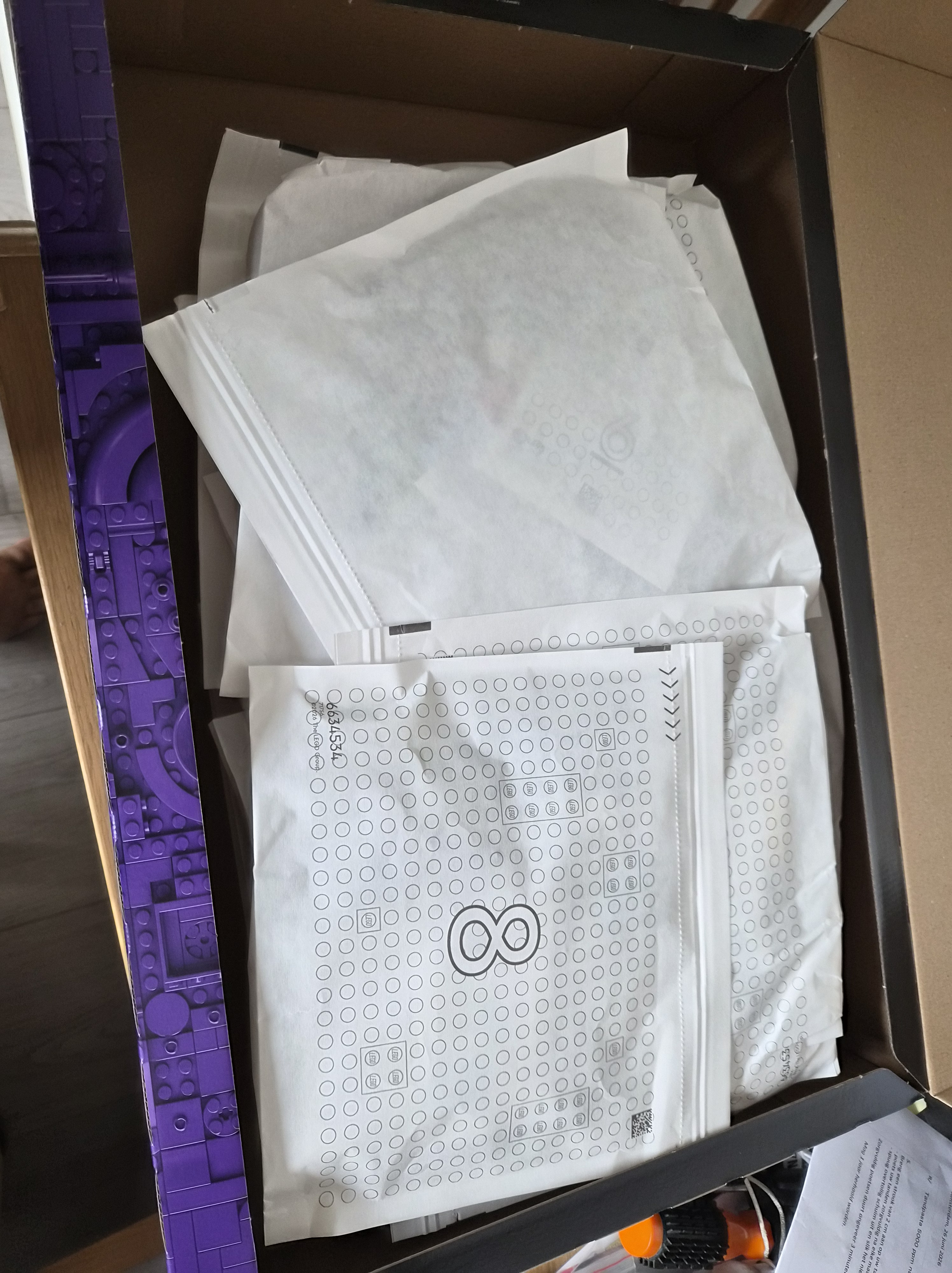
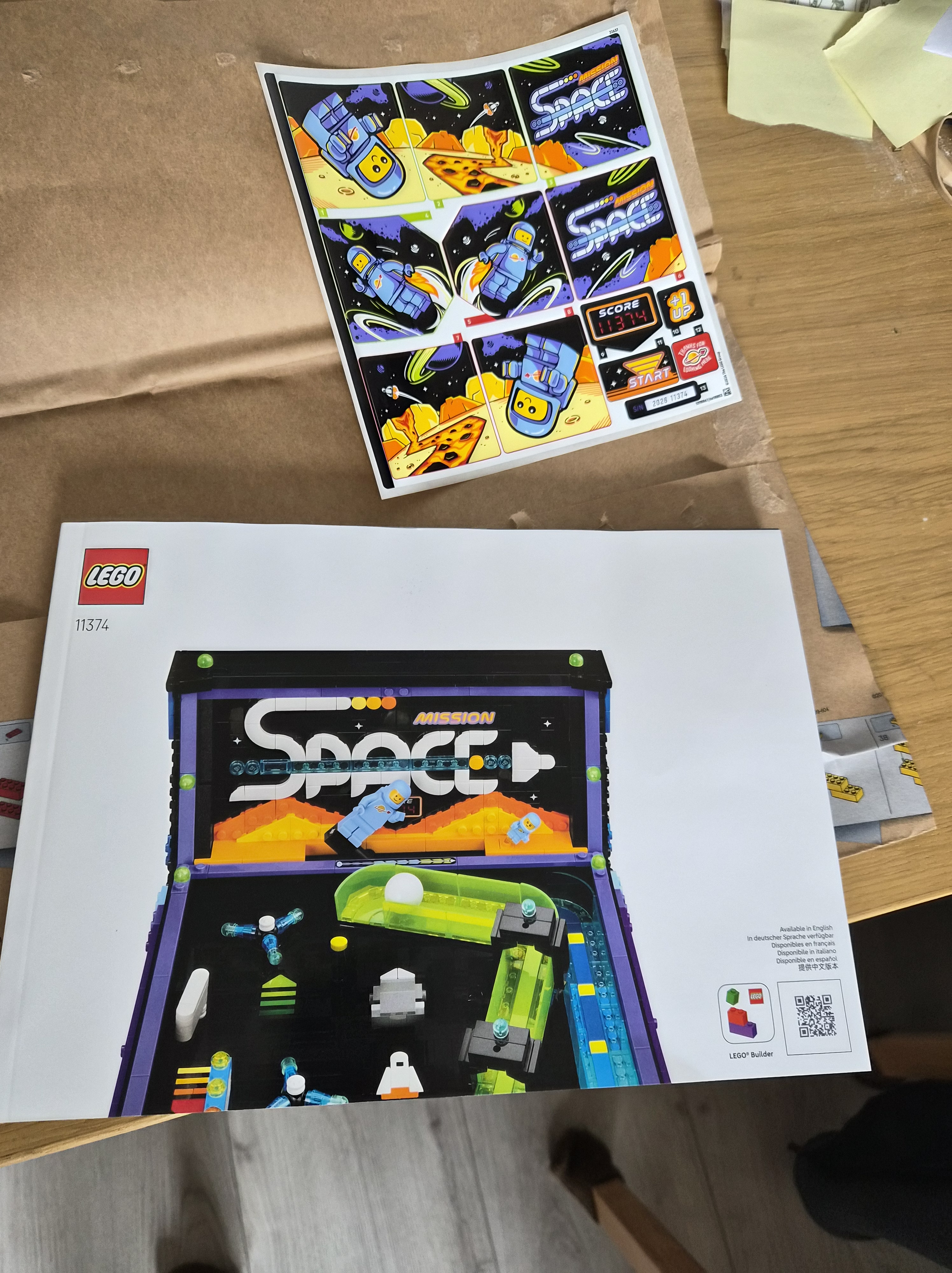
16 bags, some of which contain more bags, and an instruction booklet so heavy you can hurt someone with it. Oh, and some stickers.
Apparently that is how Lego ships larger sets these days – it was unfamiliar to me, not having bought any Lego since the 1990s.
Building
While the booklet is well made, I found a lot of the instructions unclear. Luckily, the QR code on the booklet points to a download for the Lego Builder app, which proved to be a godsend. The same instructions, but now in 3D, rotatable and zoomable. I used this to build the table.
The frame
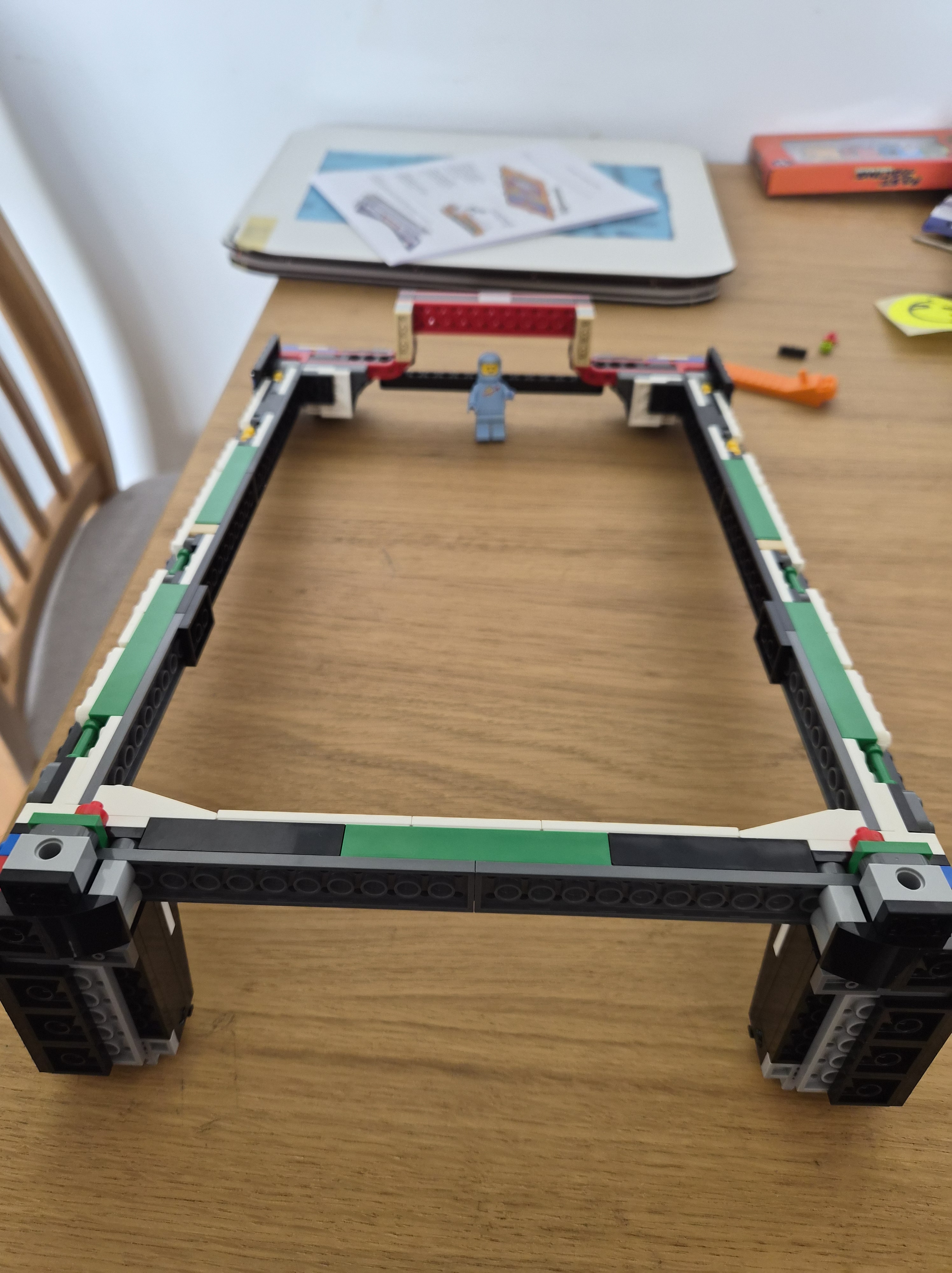
Bag 1 started small with just the mini figure and a part of the frame. Also shown in the back is the orange spudger which would come in handy to correct mistakes, and the first of many spare parts.
Framed more
Bag 2 was more of the frame, including the first yellow bar parts that would come in handy later.
Bag End?
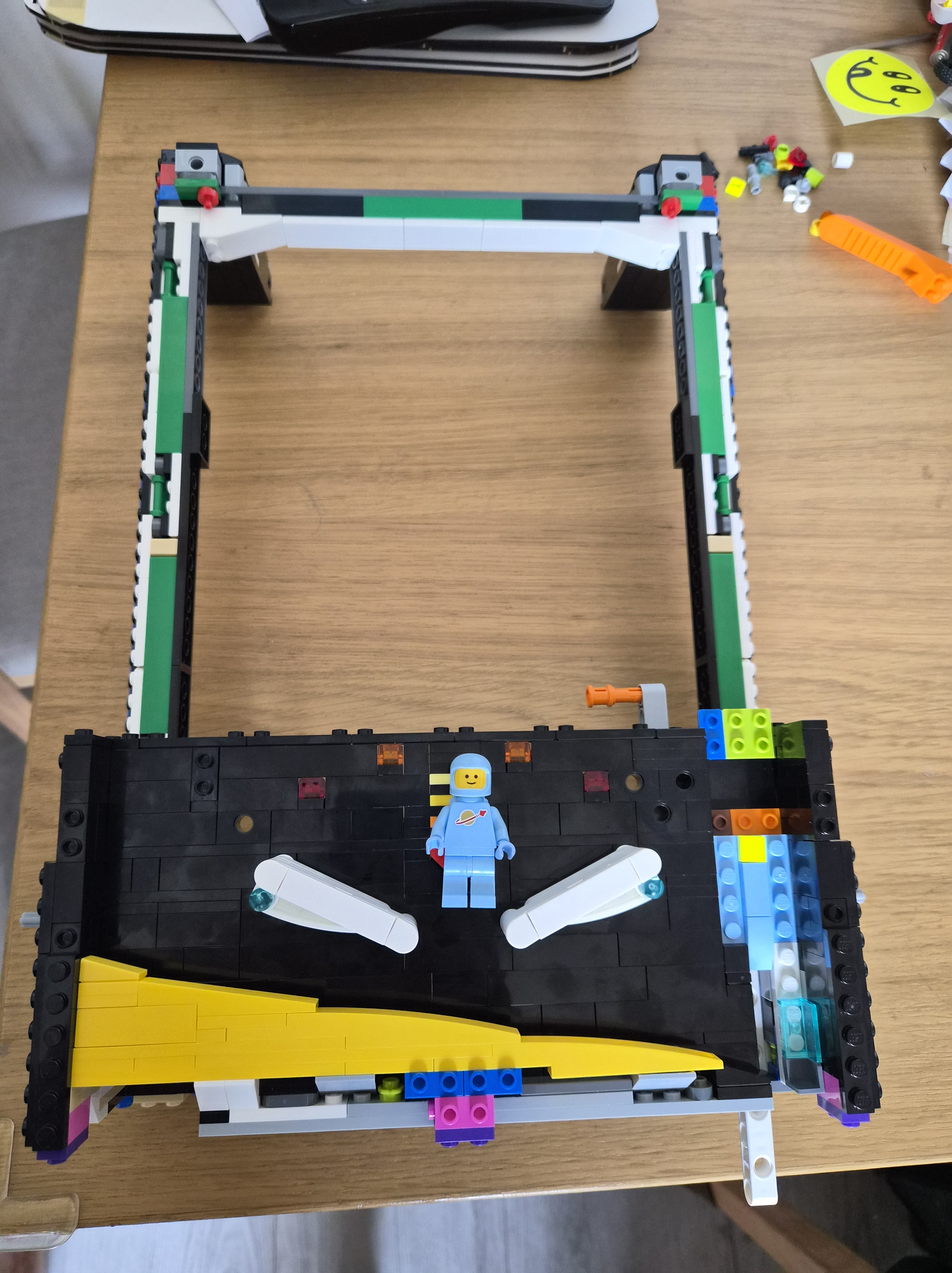
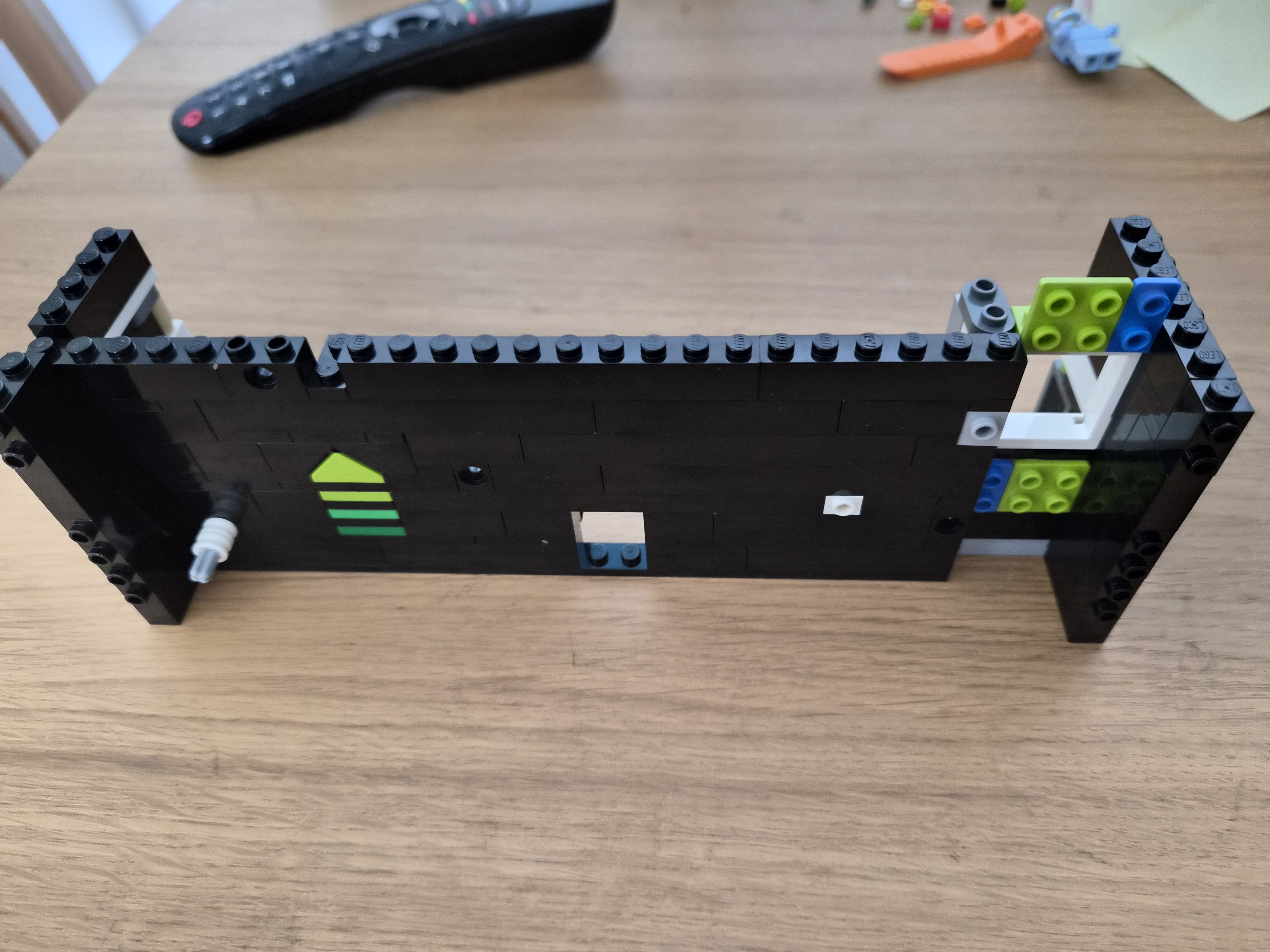
With bag 3 done the full outer frame (sans scoreboard) is completed. Isn’t she a beauty from the back?
What is this?
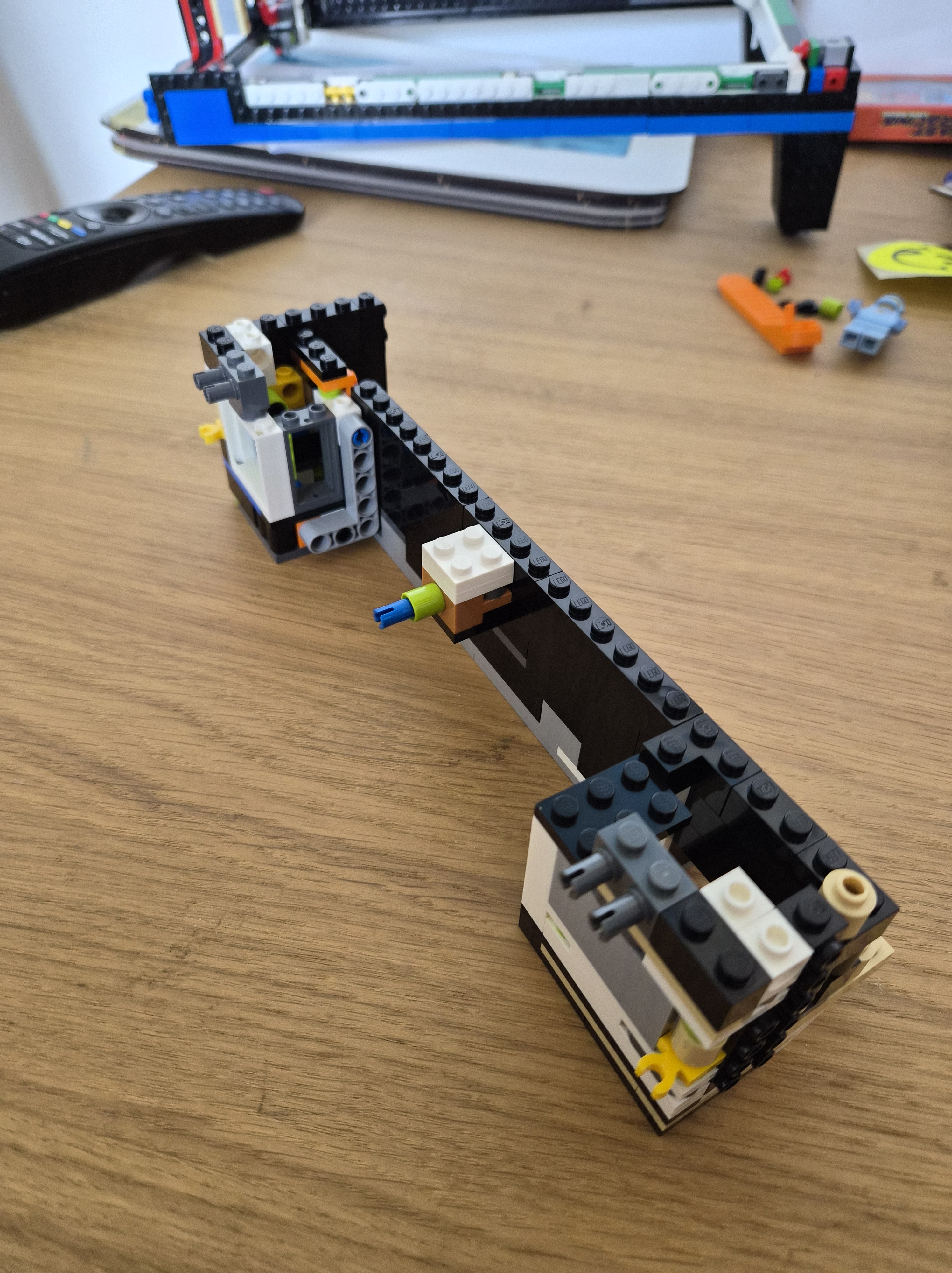
In bag 4 I could put the frame to the side and started working on parts which didn’t make much sense to me yet at the time. Notice the yellow hooks, they would become very interesting later.
We’ve got Flippers!
So turns out what I was building was the ball drain and the flippers! I was not familiar with Lego Technic beyond the name, but seeing these ‘drive shafts’ in action made me smile. I spent more time than necessary just ‘testing’ the flippers before continuing.
We’ve got a plunger, too!
At about two hours into the build I am seeing it all come together.
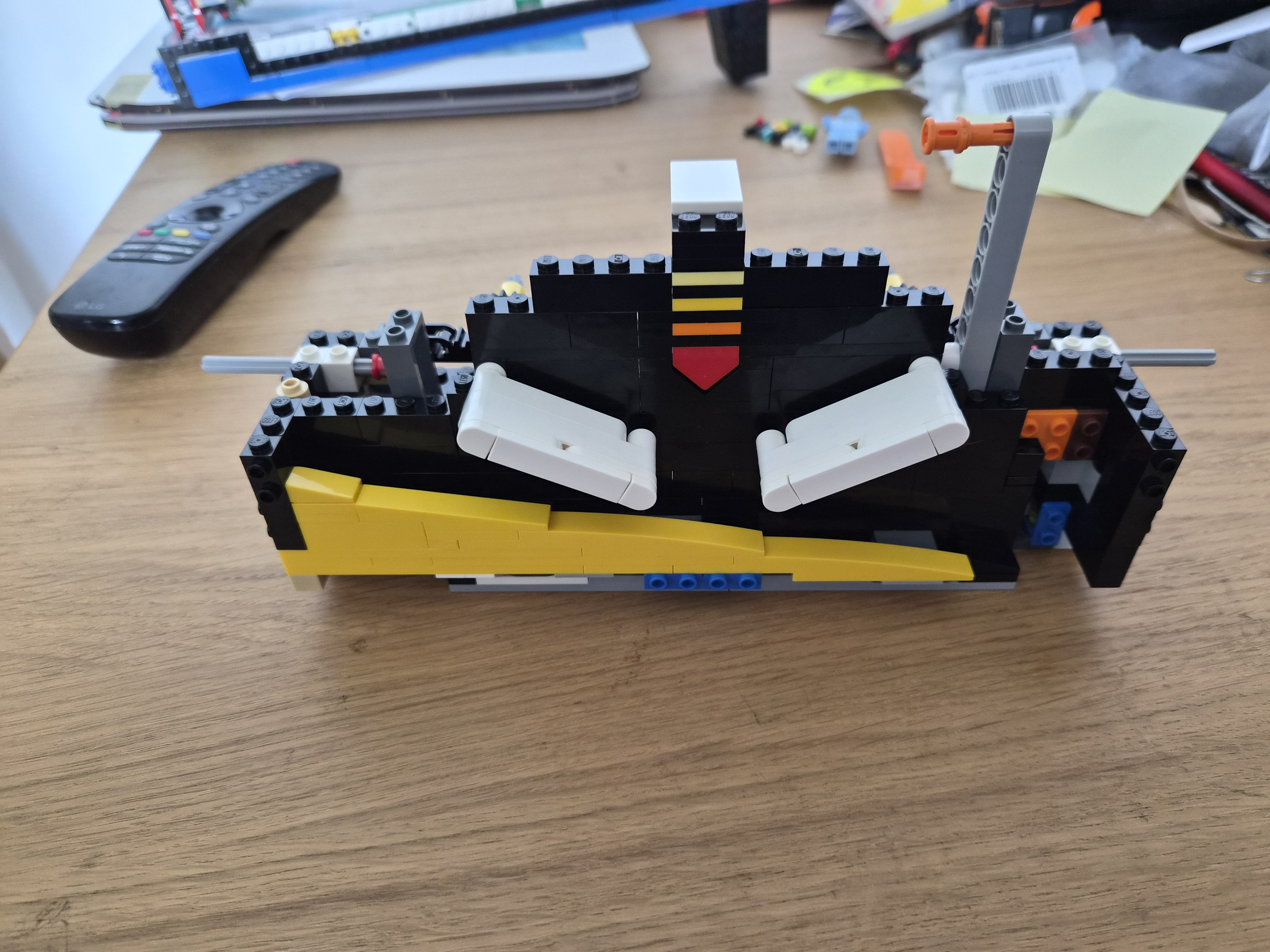
The white thing on the bottom is the plunger. Another ingenious mechanism, and you can see how it all fits together now. The flipper assembly hooked into the frame and is now snug as a bug.
The collection of spare parts keeps also increasing.
Frontage
Another half hour later and the front is complete, with a fully assembled plunger and even a spare ball tray on the left.
Thanks for Looking Here
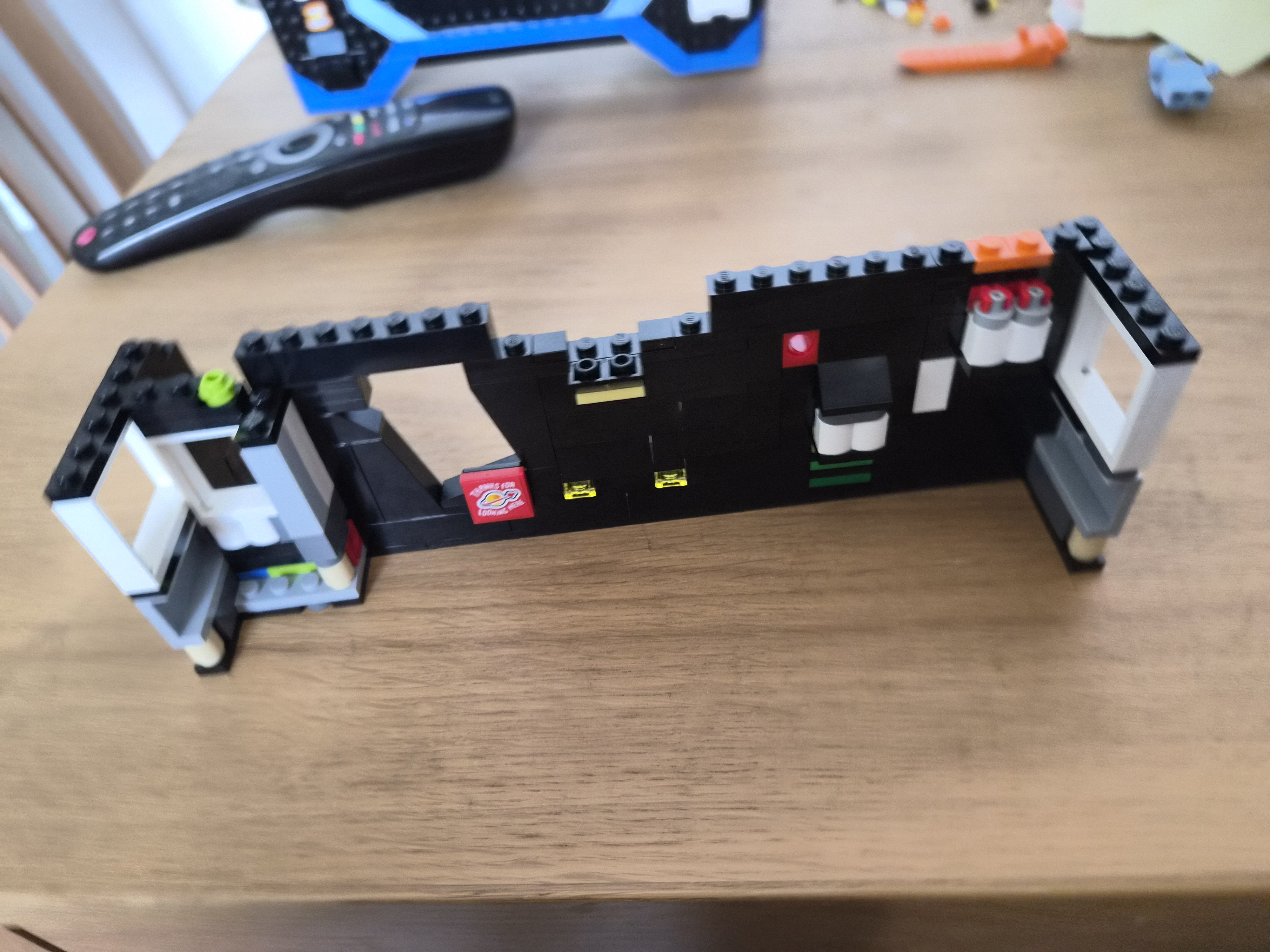
I had no idea what this was again, but later found out it’s part of the underside of the playfield where a lot of the mechanics would be hooked into.
Arrows
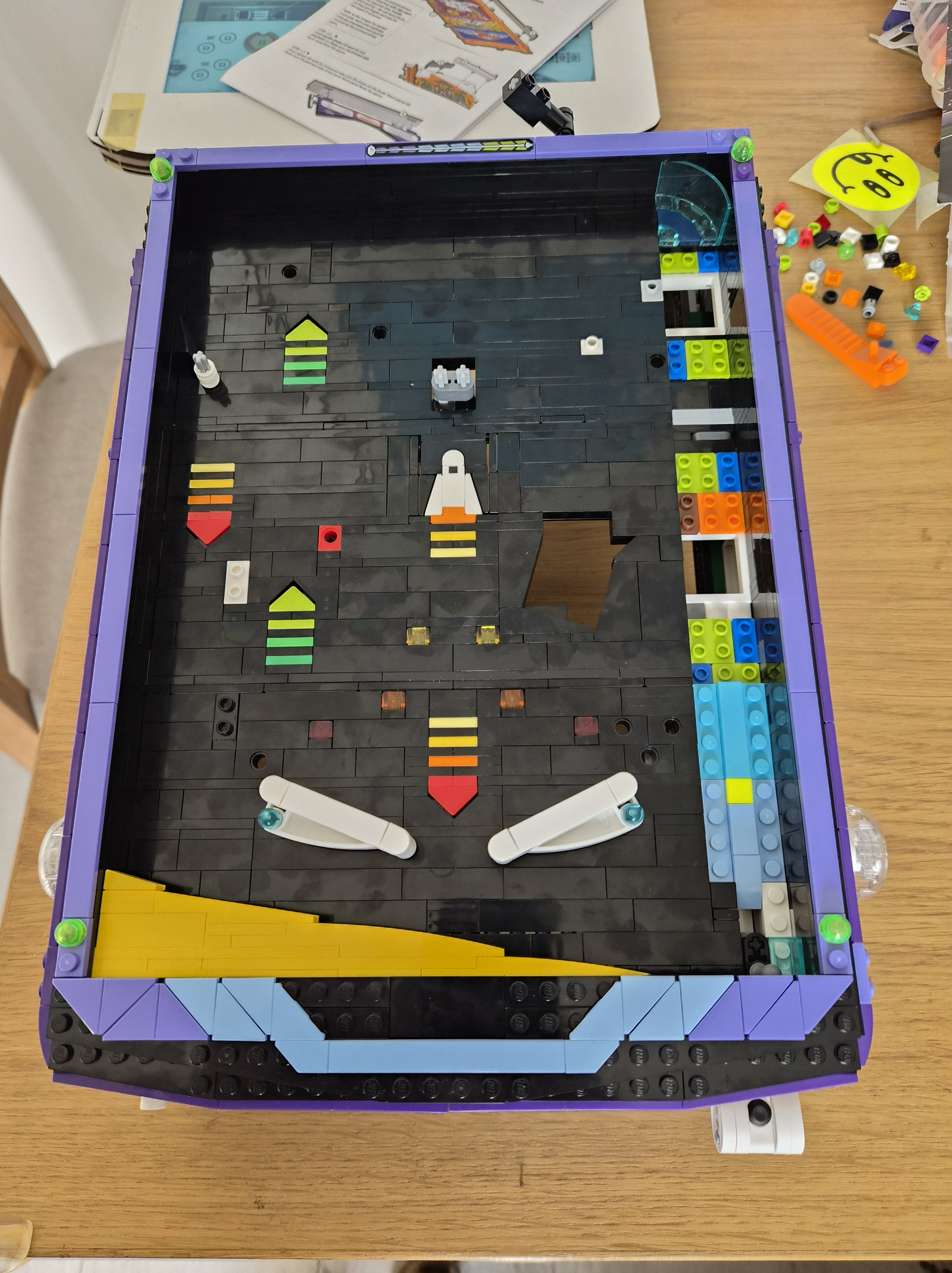
The same part, continued but now from the other (top) side. At this stage I was three hours into the build.
Are we done yet?
With the part from bags 8 and 9 installed, the playfield is nearly complete. All that’s left is the things that go on it like ramps, bumpers, and the launching lane.
To the side you can see the flippers, and above the ever-increasing number of spare parts.
The One Place not Corrupted by Capitalism
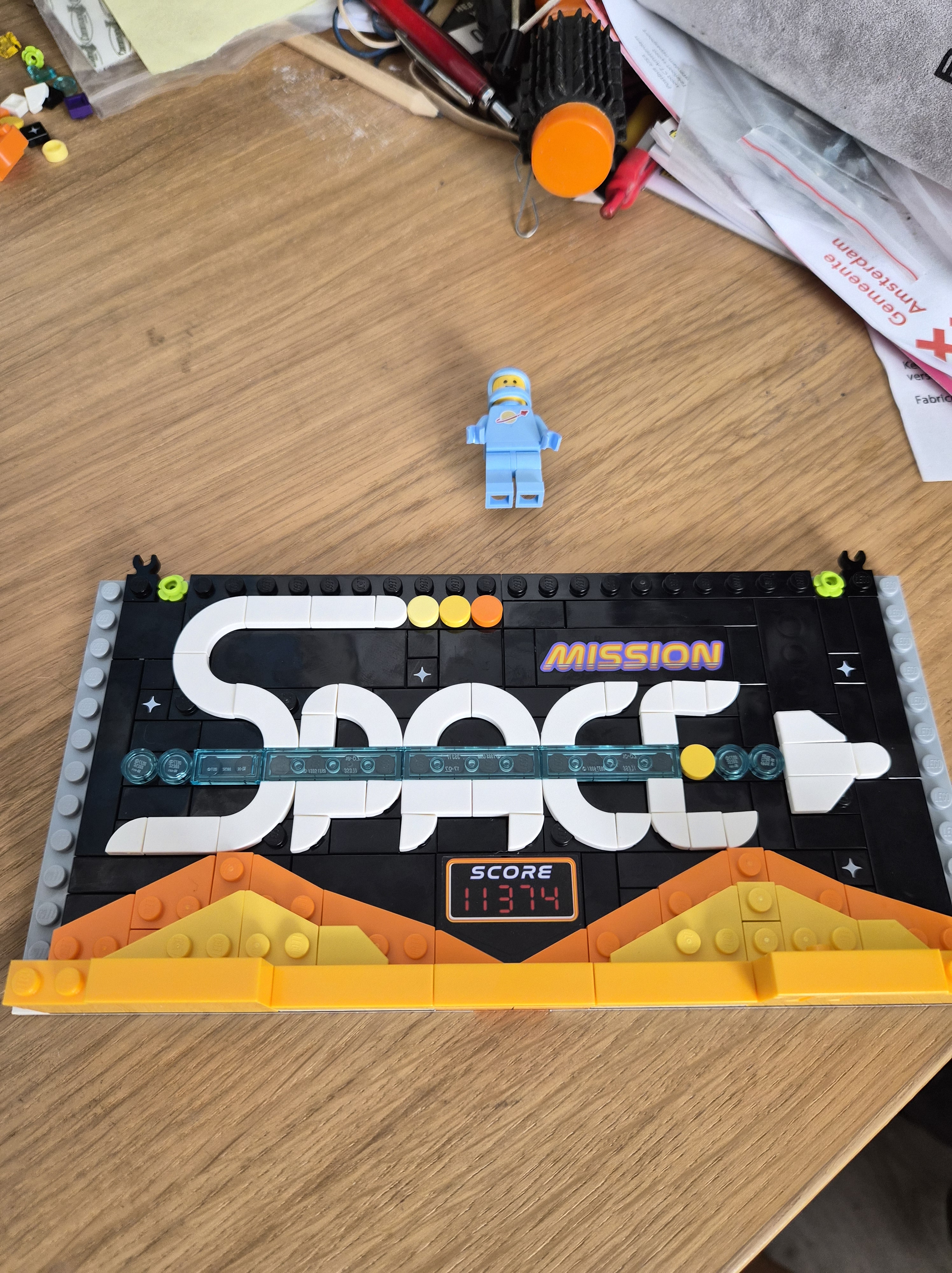
Building the scoreboard came next, with SPACE made from blocks. A really nice detail!
It’s all coming together
After a short break for the first half of a FIFA match I finished the scoreboard and connected it to the field. With just two bags left, I knew the ramp and bumpers would be next.
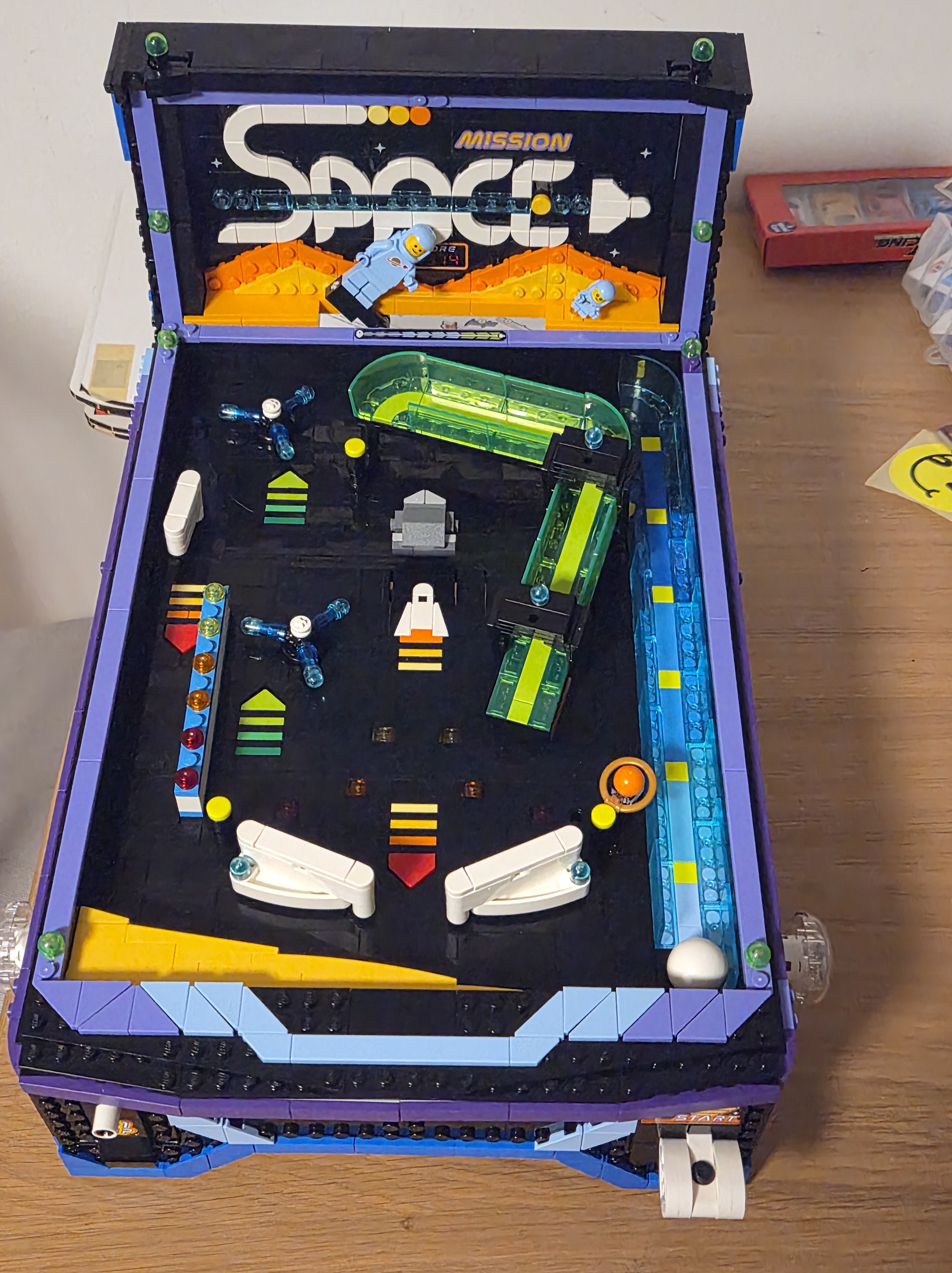
Final
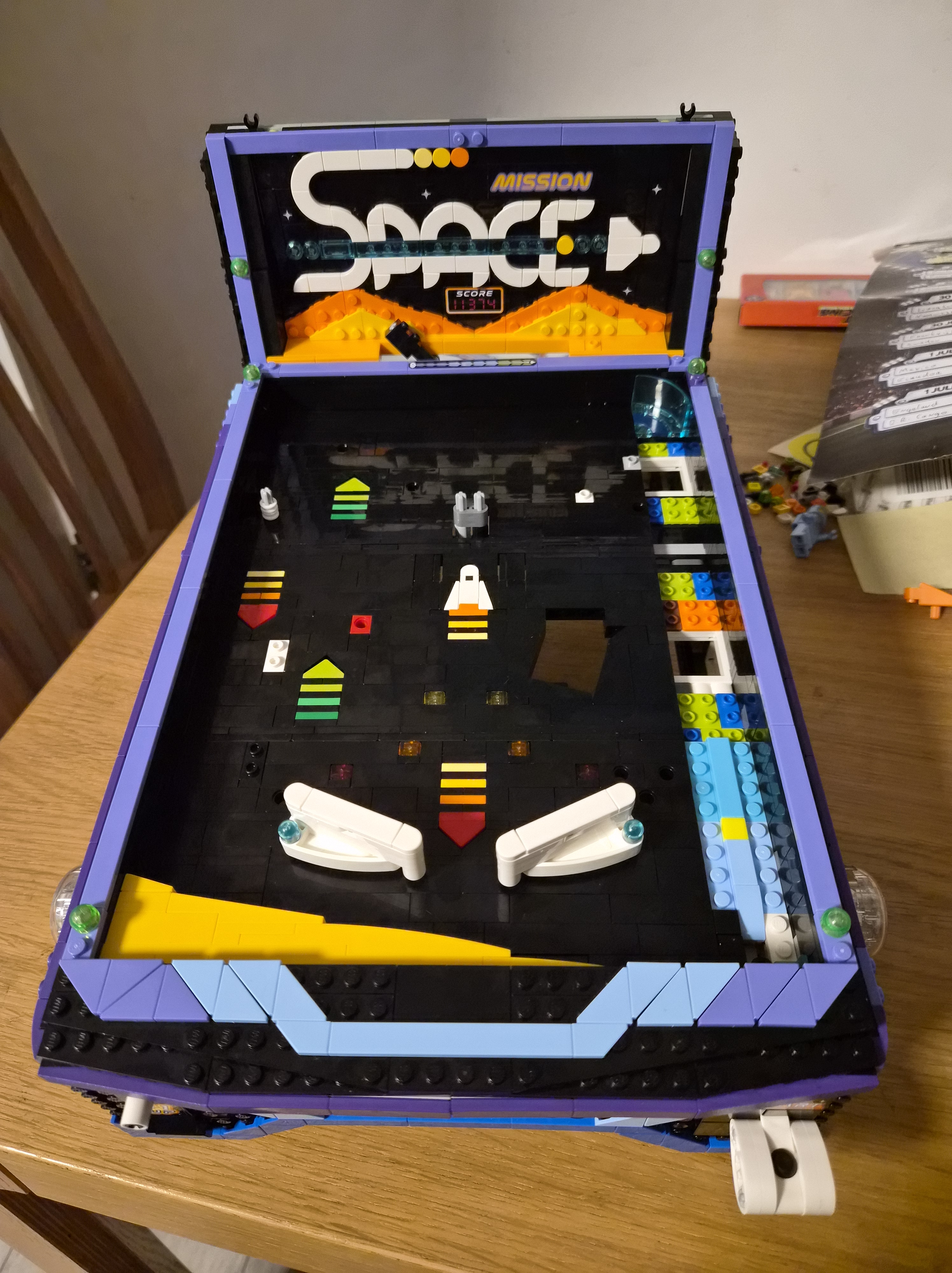
Twelve hours later — which does include around two hours of break time for football — she is complete. Time to play.
Playing the table
For a mini pin made from Lego bricks of all things? It plays really well. A large part of this is due to the comparatively large ball size: the larger the ball, more it behaves like a real pinball.
As of right now, I don’t own any physical pinball table, not even a tabletop toy. I used to have one in the past, though. A Spider-Man based table I had when I was a teenager that was battery-controlled to run the lamps and scoreboard, and that I owned for a couple of years until I sold it at the yearly open street market of Koninginnedag here in the Netherlands. I don’t recall what I got for it, but looking back, it was far too little regardless of the actual amount. I was an idiot, I should’ve kept it.
When I play pinball these days, it is on my PC or my PS4. It’s not perfect, but with titles like Zen Pinball/Pinball FX, Farpoint’s Pinball Arcade, Zaccaria Pinball, emulators, and a few other titles, I have access to countless titles. Since I don’t have a dedicated pinball controller yet like the awesome MAME-based tables I see on my Twitter feed now and then, I have to control them with more conventional means. In practice, that means a controller or a keyboard, so here’s a listing and loose rating of the controllers I have used so far.
I’ll split this list between keyboards and game controllers, as every single controller is better than every single keyboard when it comes to computer (or console) pinball for the simple reason that controllers have analog sticks, which means you can actually control the plunger with some level of accuracy. Plus, they tend to have a second stick which lets you nudge in more than one direction.
Keyboard types
I can only wish my laptop keyboard still looked as clean as this after years of heavy use…
Laptop keyboard
Just about every laptop keyboard is awful in every aspect. Computer pinball is usually controlled by the shift keys and space bar, and on a laptop keyboard, you have three major issues when it comes to playing computer pinball on them:
#1 They tend to be really small, all the keys are cramped in a tiny space.
#2 Since laptops are tiny, keys can be shifted around and other keys added. As a result, often the shift keys are not where they are supposed to be, and the space bar will be too small.
#3 Cheaper laptops even use membranes or chicklet keys. Membranes are impossible to use for pinball as they can have trouble registering even two keypresses, like both flippers, and chicklets just don’t feel good to use. The Apple magic keyboard is an infamous example of a chicklet keyboard that only die-hard followers of the Cult of Cupertino can love.
Standard keyboard
Dome-switch keyboards, scissor-switch keyboards, capacitive keyboards and the like. I’ll group them all together, as there is really no big difference between how they can be used to play pinball. As long as each key is registered individually and the shift keys and space bar can be easily hit, these work fine for computer pinball.
Mechanical keyboard
Now we’re talking. Mechanical keyboards have that satisfying feeling when you depress keys and are often made for either typists or gamers. Low latency, clearly registered keypresses, and you have a fine pinball controller.
Other keyboards
What about an on-screen keyboard, or a projection keyboard, I hear nobody ask? You have to be kidding.
Of course, there are better options than keyboards, which brings us to:
Game controllers
Opinions differ, but I just think these controllers look cool. Plus they work beautifully.
Generic game controller with analog stick
In the days before Windows Vista, these were ever-present. You still see them occasionally, although less so on modern PCs as very few of them were USB connected. Here, I’ll limit it to controllers with at least two shoulder buttons and an analog stick. The immediate advantage over keyboards is that analog stick: you can adjust the plunger just as you would in real life! I’ve ranked this generic entry last since, on modern PCs, you want a modern controller.
Xbox360 Controller
For many years the standard PC controller, and with good reason. While the D-pad is absolute garbage, and if you disagree I challenge you to actually play a game that uses the D-pad for navigation, both shoulder buttons and the left analog stick feel great to hold. With this type of controller you can do everything you need to in a pinball game: plunge to shoot the ball with as much force as you want, have two or even four dedicated flipper buttons, a second analog stick to simulate nudging in up to three directions (if the game supports it), and enough face buttons to map whatever you need to. Even magna-save for those unfortunate tables that depend on having a dedicated magna-save button.
Dualshock 3
Mainly limited to the PlayStation 3, although it can also be used on a Playstation TV if you are one of the 9 other people who own one. Not that there are many worthwhile pinball titles on the Vita or PSP to use it, but I digress.
What makes the DS3 better than an Xbox360 controller is the way the controller fits in your hands. I always find holding an Xb360 controller awkward, and it’s a hassle to use my index fingers on the triggers (flippers). This is not the case with a DS3, where my hands find the right buttons perfectly. Combine it with a perfect analog stick and you have a very satisfying controller for console pinball. The one downside is that it is badly supported for PC.
Good luck finding a legit one these days, though. In the past five years all the DS3s I bought turned out to be fake and these never play quite as well as my originals.
Steam controller
A recent addition to my gaming setup, and unfortunately, it has been cancelled. I picked mine up for almost free in the December 2019 Steam sale and ten minutes later they were sold out forever.
Apart from being delisted, it’s also one of the strangest controllers you’ll ever see. It has only one analog stick, but to compensate for that it has two large capacitive circles. On the shoulders, it has the two you expect, but it also has two extra ones on the back. Looking quite similar to the strange add-on Sony announced for their Dualshock 4s, come to think of it. I guess I know where they got that idea from.
The moment I got it, I retired my old Xbox360 controller, since the Steam controller is extremely versatile and every button including the capacitive circles can be remapped. With some pinball games not using normal controls but insisting on space alien setups, the Steam controller is a godsend since you can just remap them to make it work normally. And while the analog stick is small, it is very responsive and allows me to make better adjustments with plunging than both the XB360 and DS3 ever could. In that aspect, it’s even better than the DS4, so it has become my main pinball controller on PC.
Dualshock 4
How do you make a good controller better? By making it slightly bigger, apparently. Sure, the DS4 also has a lightbar and a touchpad, but no pinball game on the PS4 actually uses these. And you don’t need them, since the flippers and analog sticks are just perfect. Fine control over a plunger, responsive flippers, the only way it could be better was if the analog stick had even better control.
Horipad FPS Plus
O hi there, Dualshock 4 with a better analog stick! The Horipad FPS Plus is my current main pinball controller for one reason: it has a little slider at the bottom and a small nub at the back which work together to limit how much range the right analog stick can travel: either half or quarter. This is incredibly overpowered since in a lot of tables in Pinball Arcade you can make a skill shot 100% of the time by setting it to the halfway point, and then just pull fully back. The analog stick is also very easy to adjust just a little bit, feeling even better than a default one, so making skill shots is easier than ever. On top of that, the L1/R1 shoulders are digital, not analog, so they register full force immediately. This is perfect for a pinball simulator since on a real table you just slam the buttons and the flippers move. One last feature this controller has that is relevant to pinball control is that it has a turbo feature, which comes in handy on tables like Fish Tales where some video modes are brainless button mashers. Just set the X button on autofire until you win the mode, and get back to actually playing.
PSP / Playstation Vita
Included for completion sake only. On the dedicated handhelds, you can’t normally use a separate controller, so the console itself is the controller. Well, to keep it short, I am not a fan of the triggers on either the PSP or PS Vita, and when it comes to playing in vertical (or tate, たて) mode, things get worse. You’re forced to use the tiny face buttons instead, which means you’re probably holding the console in a cramped claw until your fingers give out.
What my hand usually looks like after trying to hold a tiny handheld console sideways for any length of time.
The PS Vita has a tiny advantage here – but only when it comes to PSP games – since you can optionally assign two corners of the screen to button presses, but it’s still not something I can ever recommend.







You must be logged in to post a comment.